> For the complete documentation index, see [llms.txt](https://windows.help.formit.autodesk.com/llms.txt). Markdown versions of documentation pages are available by appending `.md` to page URLs; this page is available as [Markdown](https://windows.help.formit.autodesk.com/ja/tool-library/circle-tool.md).
# 円
## 円を描画する
\[円]ツールを使用して、領域内または別のオブジェクト上に円を描画します。
キーボード ショートカット: \[C]

円を描画するには、まず中心点を選択し、次に円の半径を指定します。円が自動的に面になります。


## 円を編集する
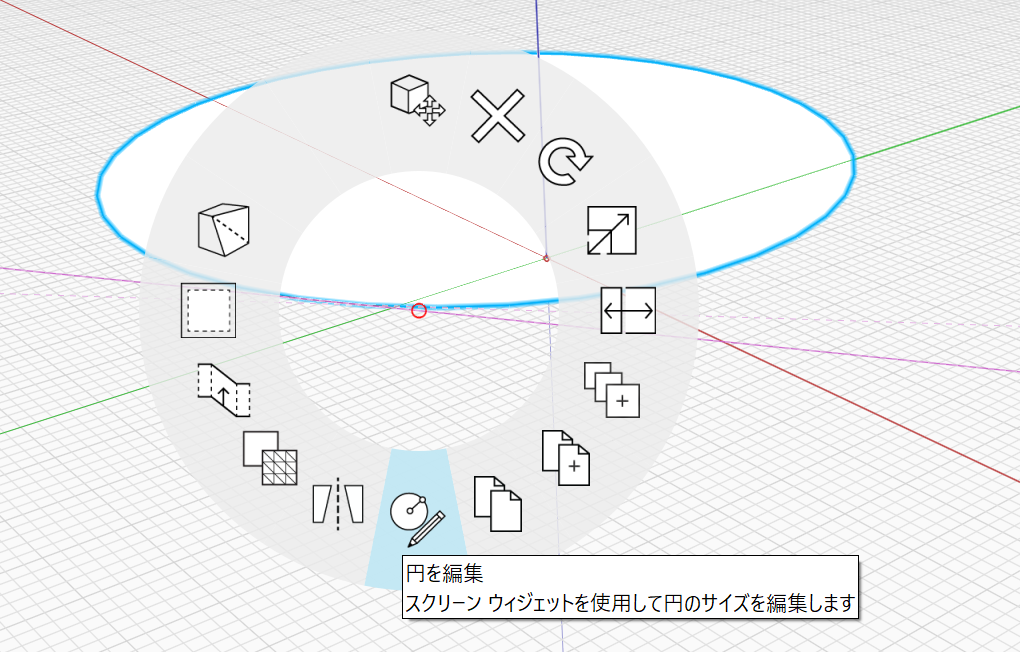
既に配置されている円を修正することもできます。円を右クリックして、下部にある\[円を編集]を選択します。
\[円を編集]グリップが表示され、円のサイズや方向を変更することができます。新しい円は編集中にアウトラインとして表示されます。
いくつかのグリップが表示されます。
* 中心グリップは、円の原点をコントロールします。
* エッジに沿ったグリップは、円の半径をコントロールします。
* 上部のグリップは、円の法線/方向をコントロールします。
編集を完了するには、空の領域をクリックするか\[Esc]を押してツールを終了します。現在の円が新しい円と置き換わります。
%20(2).png?alt=media)