# 圓

## 繪製圓

使用「圓」工具在空間中或其他物件上繪製圓。

鍵盤快速鍵：C

![](/files/Qbbx2fVJke3H8d5JBtg0)

若要繪製圓，請先選擇中心點，然後指定圓的半徑。接下來，圓會自動變成面。

![](/files/Om4zMO30tadhyhf9UbF7)

![](/files/wsU5fsfgrTJv0osaZLbm)

## 編輯圓

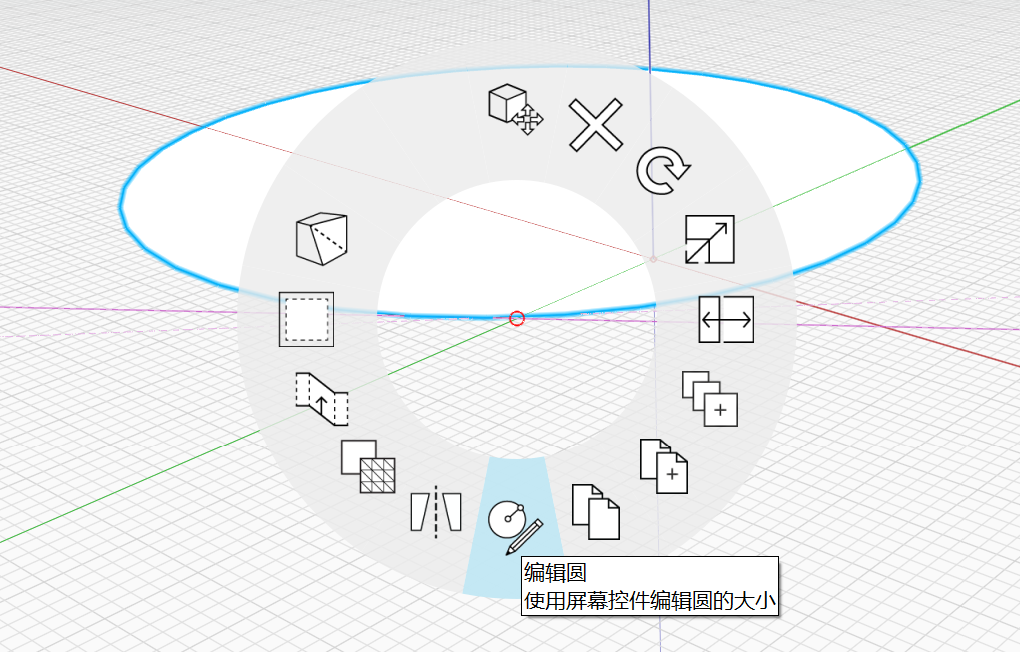
您也可以在放置的圓上按一下右鍵，然後選擇底部的「編輯圓」來修改圓：

<figure><img src="/files/iJwxgM1AyO9cpFziqM3e" alt=""><figcaption></figcaption></figure>

此時會顯示「編輯圓」掣點，讓您變更圓的大小或方位。編輯時，新圓將以輪廓顯示。

您會看到一些掣點出現：

* 中心掣點控制圓的原點
* 沿邊的掣點控制圓的半徑
* 頂部的掣點控制圓的法線/方位

<figure><img src="/files/xjGHFCngh5kcWOtXXq89" alt=""><figcaption></figcaption></figure>

若要完成編輯，請按一下空白空間或按 Esc 結束工具。新圓將取代目前的圓。


---

# Agent Instructions: Querying This Documentation

If you need additional information that is not directly available in this page, you can query the documentation dynamically by asking a question.

Perform an HTTP GET request on the current page URL with the `ask` query parameter:

```
GET https://windows.help.formit.autodesk.com/zh-tw/tool-library/circle-tool.md?ask=<question>
```

The question should be specific, self-contained, and written in natural language.
The response will contain a direct answer to the question and relevant excerpts and sources from the documentation.

Use this mechanism when the answer is not explicitly present in the current page, you need clarification or additional context, or you want to retrieve related documentation sections.