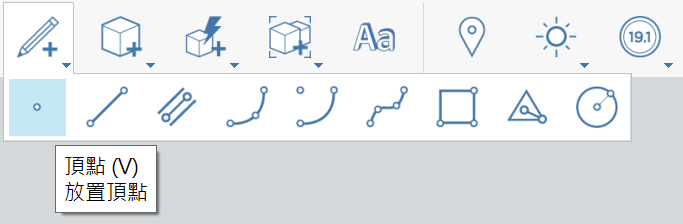
# 放置頂點

1. 在[動作工具列](https://github.com/FormIt3D/autodesk-formit-360-windows-help/tree/c377e7b8a3b8e43e684321d0b7de867608d317a3/tool-library/tool-bars-extended.md)中，按一下以開啟 **「草圖」按鈕**，並[選取](/zh-tw/tool-library/select-edge-face-or-object.md)頂點。

   <figure><img src="/files/XBZAkMe2TBEg2niU6B0a" alt=""><figcaption></figcaption></figure>
2. **按一下以放置**頂點。
3. 請注意，您可以在邊上放置頂點以分割邊。否則，如果頂點放在面上或空間中，則會以獨立頂點維持可見。

<figure><img src="https://github.com/FormIt3D/autodesk-formit-windows-help/blob/master-cht/.gitbook/assets/PlaceVertex.png" alt=""><figcaption></figcaption></figure>

<figure><img src="/files/DPVqgJBgfWcSSZlxa1tn" alt=""><figcaption></figcaption></figure>

1.


---

# Agent Instructions: Querying This Documentation

If you need additional information that is not directly available in this page, you can query the documentation dynamically by asking a question.

Perform an HTTP GET request on the current page URL with the `ask` query parameter:

```
GET https://windows.help.formit.autodesk.com/zh-tw/tool-library/place-primitive-object-1.md?ask=<question>
```

The question should be specific, self-contained, and written in natural language.
The response will contain a direct answer to the question and relevant excerpts and sources from the documentation.

Use this mechanism when the answer is not explicitly present in the current page, you need clarification or additional context, or you want to retrieve related documentation sections.